FaceFocusVR
Instructions
Offline Version
This document is an exported copy of the online instructions. For interactive pictures, videos, and the latest updates, please use the website. This PDF is a backup in case the website is unavailable or you have no internet access.
If you need help, join our Discord (facefocusvr.com/discord).
Basics
What you should know before you install your FaceFocusVR kit.
Before You Begin
Installing the kit is mostly straightforward. It takes about one to two hours if you follow the steps carefully and at your own pace. There is no need to rush.
This guide shows the method I have found to be the most reliable and the easiest. If you find a better way while installing, for example a different cable routing, feel free to use it. Still, I strongly recommend following my instructions exactly as written, especially the first time.
- ▶
Board Connector Overview
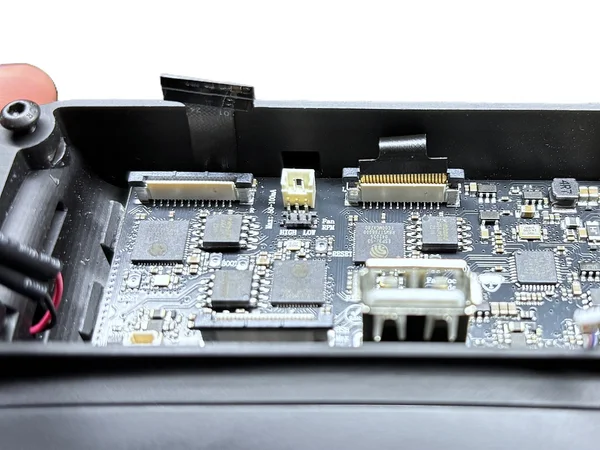
The FaceFocusVR board is the heart of your kit. It connects all cameras, LEDs, and the fan. Before you start, take a moment to get to know each connector and what it is for.
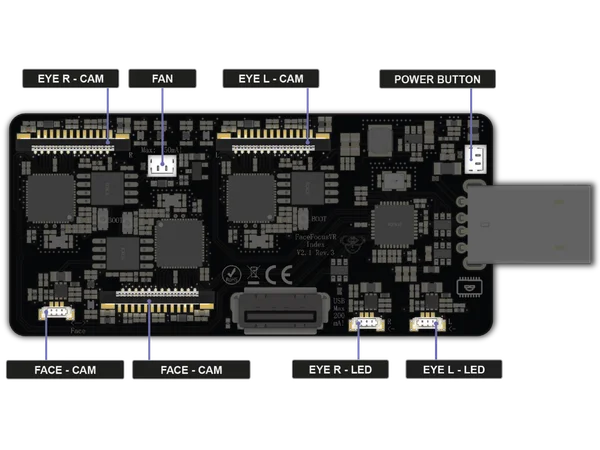
FaceFocusVR board with all connectors labeled: eye cameras, face camera, LED connectors, fan header, power button, and USB-C port Camera Connectors
The three wide connectors are for the camera ribbon cables: Eye Right and Eye Left at the top, Face at the bottom. The eye cameras sit in the eye modules, which mount around your headset lenses. The face camera sits in the face module.LED Connectors
The three small connectors along the bottom edge are for the infrared LEDs: Eye R and Eye L on the right, Face on the left. The LEDs make tracking work even in complete darkness.Fan and Power Button
The fan header at the top powers the cooling fan. The power button plugs into the connector on the right side.USB
You can use the extra USB port on the front of the board for accessories such as a Bluetooth dongle. Its power is limited, though, so I do not recommend using it.
Hardware Setup
How to install the FaceFocusVR kit in your Valve Index.
Required Tools
- M3 Allen key (hex key)
- T5 Torx screwdriver
- Tweezers (self-closing ones work best) (optional)
- ▶
Optional: Move Your VROptiker Prescription Lenses
Only needed if you use VROptiker prescription lens inserts. You move the lenses from their holders into the new eye modules from this kit.
Video: https://www.youtube.com/watch?v=_L7_H5s50D8&t=45s
Part 1: Remove the existing lens inserts
Take your current prescription inserts out of their holder. The video shows how. -
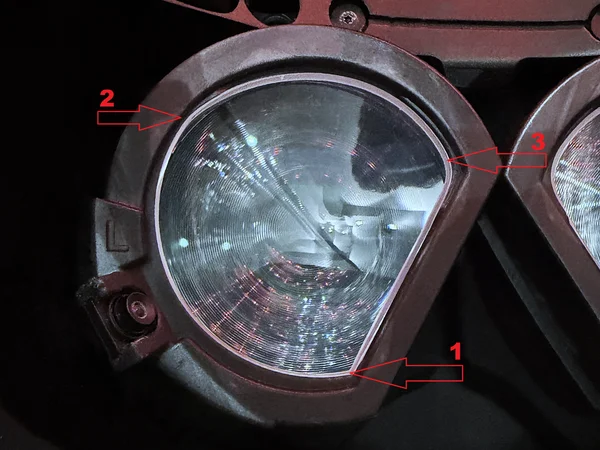
Left lens (L) in the new eye module, with red arrows showing the press order: 1 = lower (sharper) corner, 2 = upper outer edge, 3 = upper inner edge 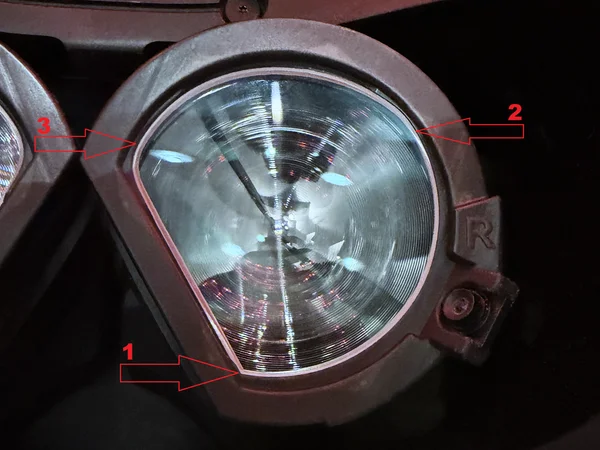
Right lens (R) in the new eye module, with red arrows showing the press order: 1 = lower (sharper) corner, 2 = upper outer edge, 3 = upper inner edge Part 2: Install the lenses in the new eye modules
The eye modules do not need to be in the headset for this. It is easiest to do it in your hands. Use the original holder as a reference: look at how each lens is oriented and how the holder keeps it in place. Then click each lens into the matching eye module, in the press order shown in the pictures.1. Place the lower (sharper) corner of the lens into the eye module first.
2. Press the outer edge of the lens into the eye module until you hear it click into place.
Before you press 3, check that the lens edge between 1 and 2 sits in the groove, as shown in the pictures. You may need to hold the lens between two fingers (top and bottom) and nudge it into place.3. Press the top of the lens into the eye module until you hear it click into place.
Once both lenses are in, gently push against the back of each lens to set it in its final position. Check that it stays in place.
Warning: Do not mix up the left (L) and right (R) lenses, and stick exactly to the press order (1 → 2 → 3) shown in the pictures. Pressing in the wrong order can permanently damage the eye module! - 1
Prepare the Headset
Adjust a few settings and remove the detachable parts.
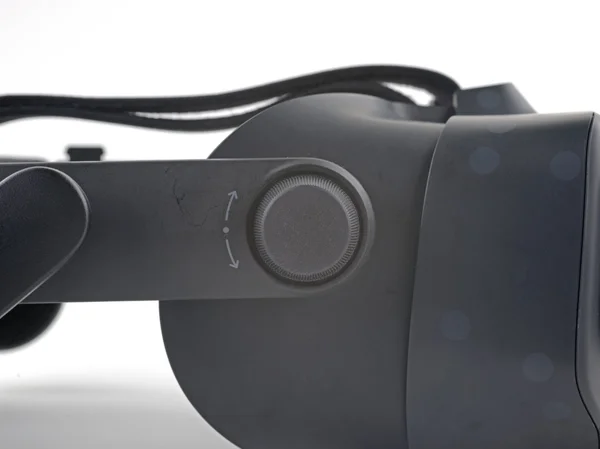
Field-of-view adjustment knob on the Valve Index 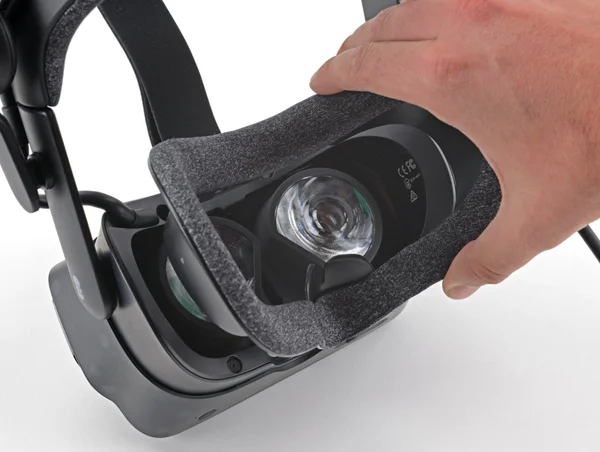
Removing the magnetic face cushion 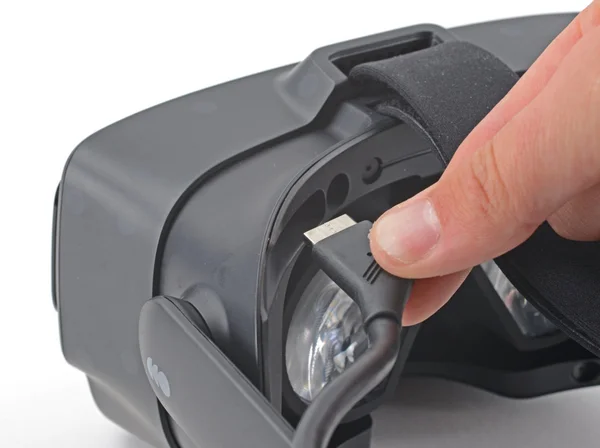
Pulling the tether cable out of the headset Source: ifixit.com
- Turn the field-of-view adjustment knob clockwise until it is fully extended.
- Set the IPD to its minimum (lenses fully inward).
- Remove the magnetic face cushion.
- Gently pull the tether cable straight out of the headset. You only need to unplug the cable itself, not the cable clips on the head strap.
- 2
Remove the Face Gasket Bezel
Take off the face gasket bezel so you can reach the inside of the headset.
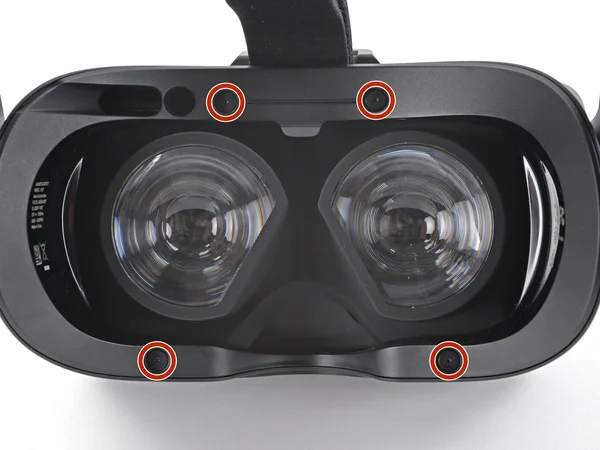
Four T5 Torx screws highlighted on the headset 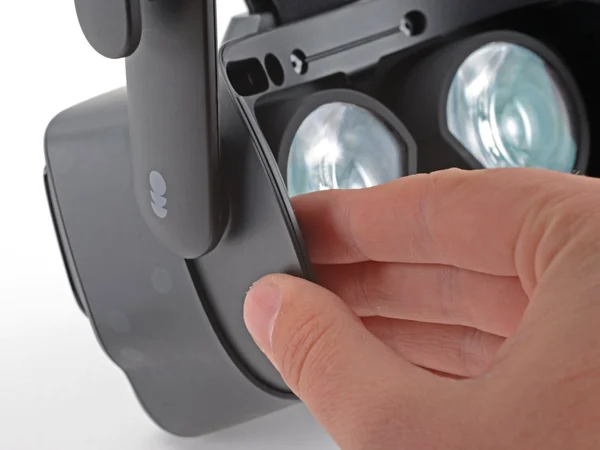
Grabbing the left edge of the face gasket bezel 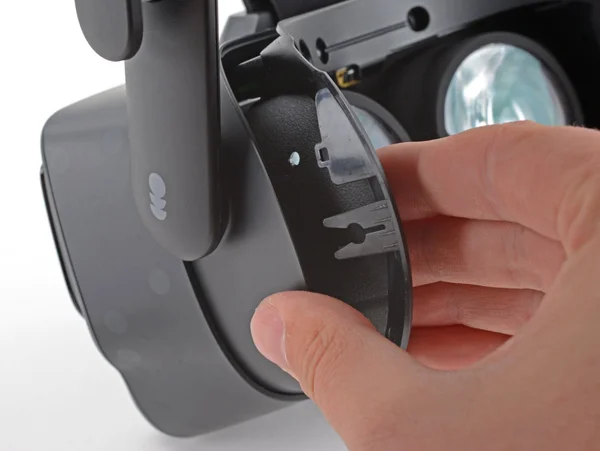
Sliding the left side of the bezel off 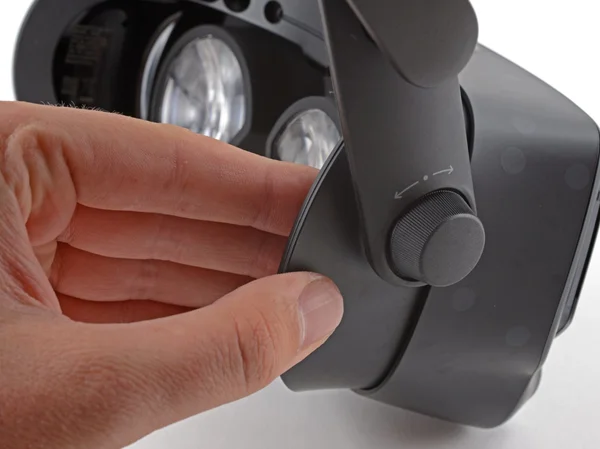
Sliding the right side of the bezel off 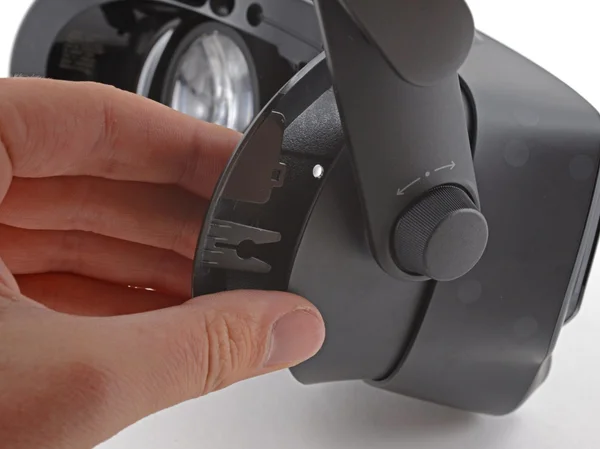
Pulling the bezel further away 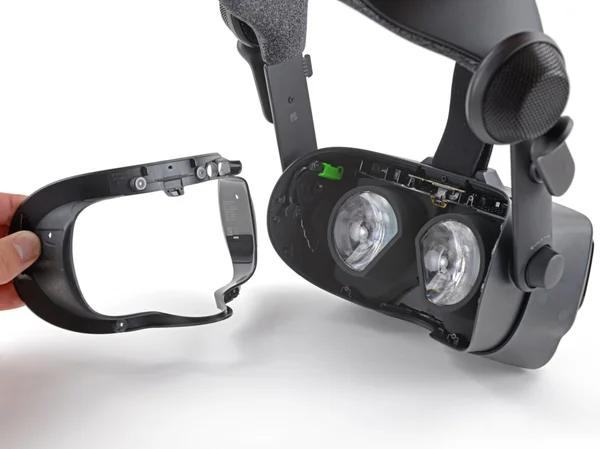
Bezel fully removed, inside of the headset visible Source: ifixit.com
- Use a T5 Torx screwdriver to remove the four 6 mm screws that hold the face gasket bezel.
- Grab the left edge of the face gasket bezel and slide it off the headset.
- Do the same on the right side.
- Remove the face gasket bezel.
Warning: Do not try to pry the face gasket bezel off. You will damage the headset. - 3
Remove the Eye Tube Gasket
Carefully detach the eye tube gasket with tweezers.
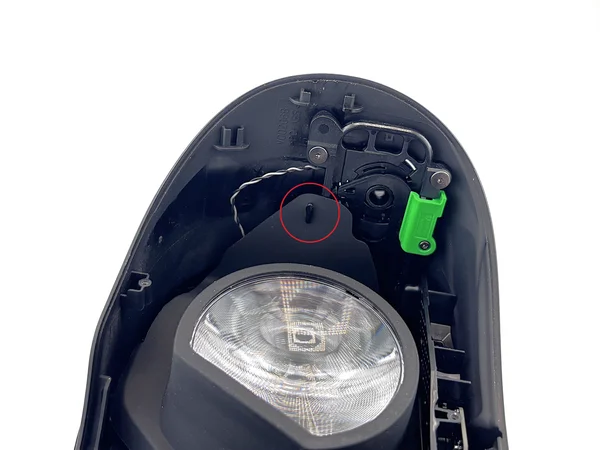
Overview of the eye tube gasket area 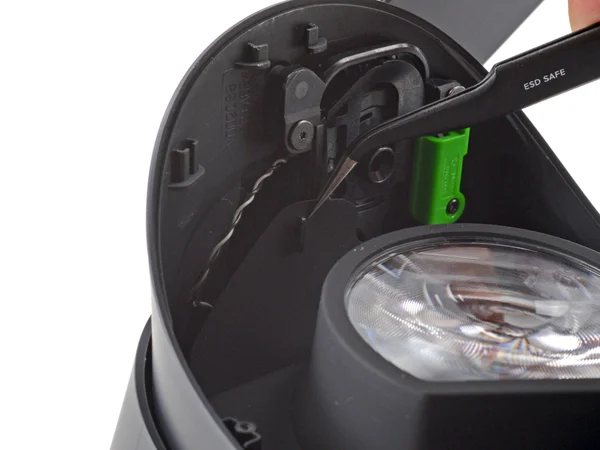
Using tweezers to separate the left edge of the gasket 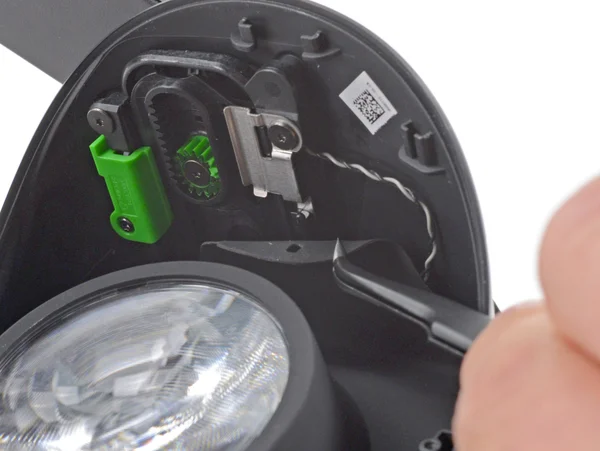
Separating the right edge of the gasket with tweezers Source: ifixit.com
- Use tweezers to separate the left edge of the eye tube gasket from the headset. Carefully lift the gasket over the hooks on each side.
- Do the same for the right edge of the gasket.
- 4
Remove the Motherboard Cover
Take off the front cover and the motherboard cover to reach the inside of the headset.
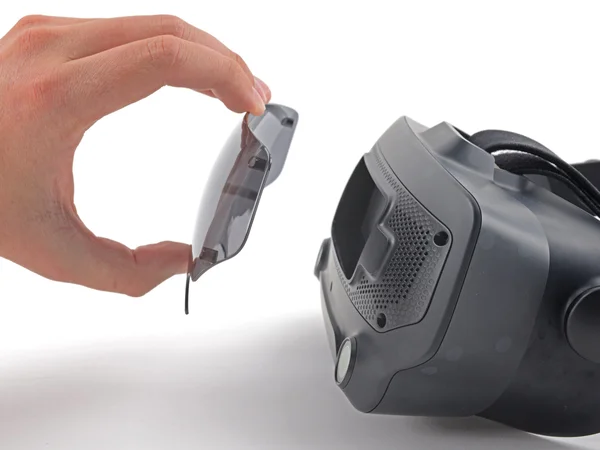
Pulling the magnetic front cover off the headset 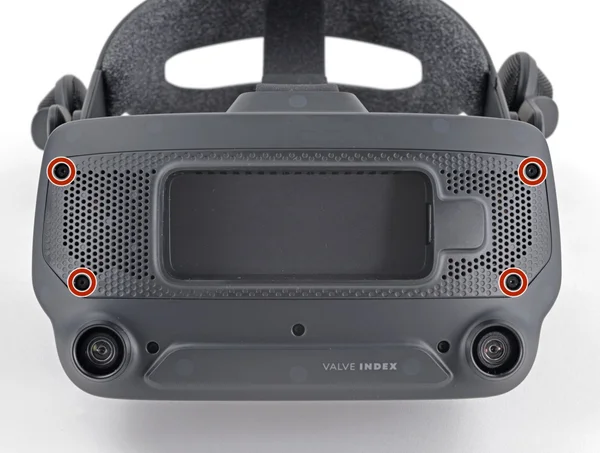
Four T5 Torx screws highlighted on the motherboard cover 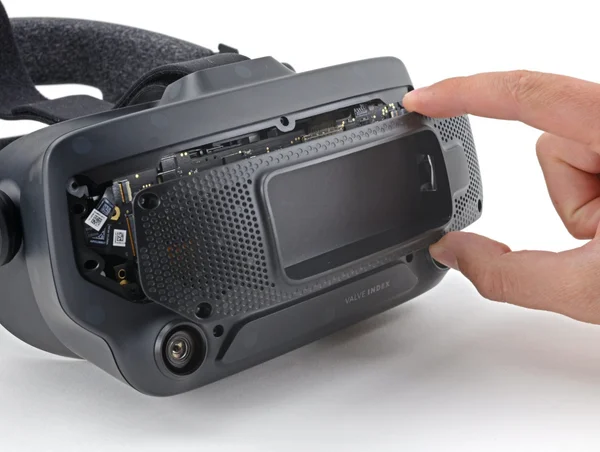
Motherboard cover removed, inside of the headset visible Source: ifixit.com
- Pull the front cover straight off the front of the headset. Four magnets hold it in place.
- Use a T5 Torx screwdriver to remove the four 5.4 mm screws that hold the motherboard cover.
- Remove the motherboard cover.
- ◎
Goal for Steps 5 to 8
From here on, the work gets more delicate because you are handling ribbon cables. Take your time!
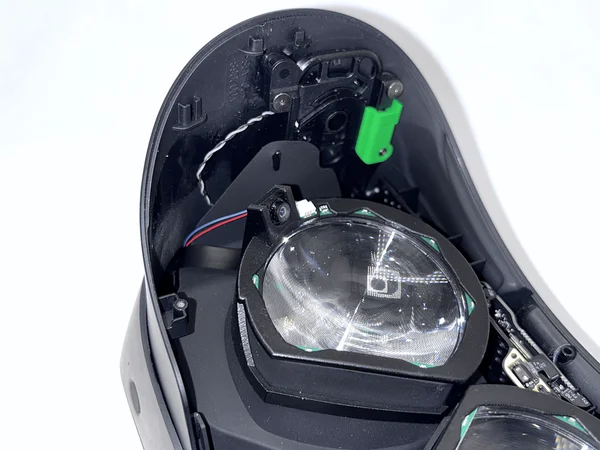
Completed setup with four cables routed through the front of the headset 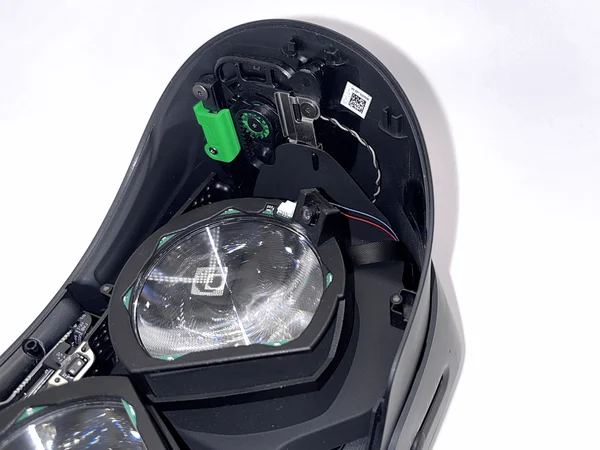
Close-up of the cable routing on the left side 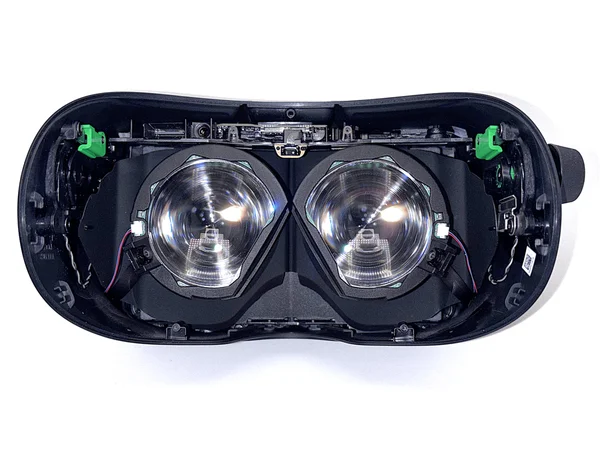
Close-up of the cable routing on the right side 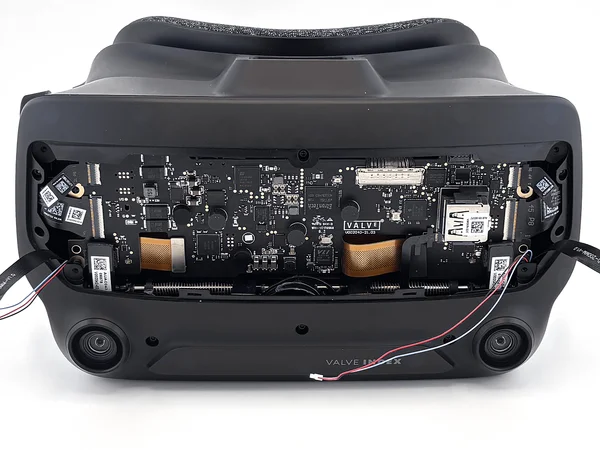
Final overview of all four cables in position In the next four steps, you install the two eye modules for eye tracking. Each eye module contains a camera and a circuit board with LEDs that light up your eye.
It is often easier to work toward a goal you can see. That is why the pictures show what your setup should look like after steps 5 to 8.
In step 5, you route the left ribbon cable through the headset. In step 6, you do the same on the right side. In steps 7 and 8, you route the LED cables.
At the end, four cables should come out of the front of your Index, exactly as shown.
Note: On newer kit revisions, the LEDs and their connector are recessed into the eye module, and the LED cable comes pre-attached. - 5
Route the Left Ribbon Cable
Guide the left ribbon cable through the headset so it comes out at the front.
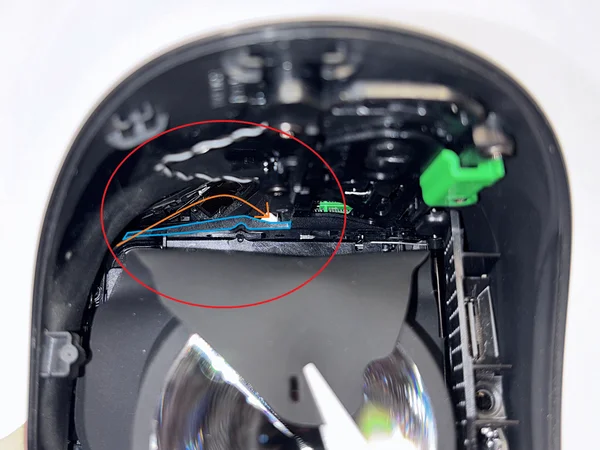
Plastic part marked in blue, with an orange arrow showing the cable path 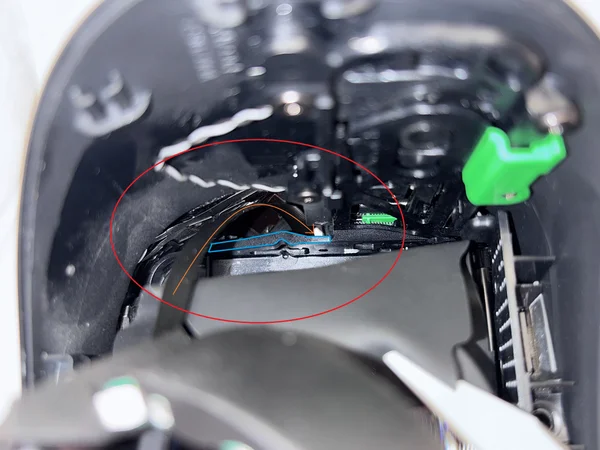
Using a light to illuminate the hole where the cable comes out 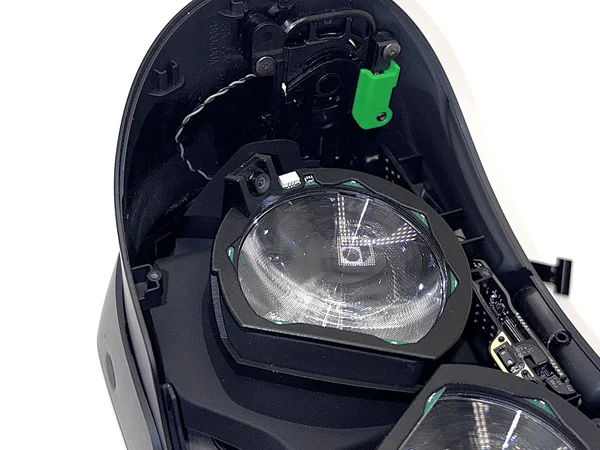
Inside view showing where the ribbon cable comes out 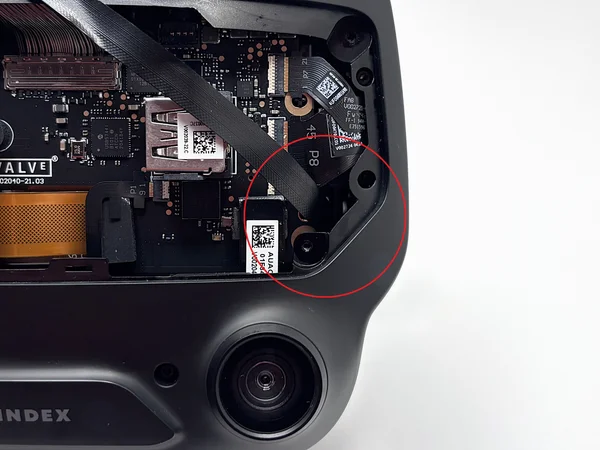
Front view with the area where the cable comes out highlighted The ribbon cable goes behind the plastic part marked in blue. It comes out through the small hole where light shines through, along the orange arrow in the first picture.
If it is hard to guide the cable through the hole or to see it, place a light in front of the headset. Then you can clearly see where the cable should come out.
The last picture shows where the ribbon cable should come out. With enough light and some patience, it is quite easy to guide the cable through the hole.
Once the cable is through, gently press the eye module onto the lens to keep it in place.
- 6
Route the Right Ribbon Cable
Now repeat step 5 for the right side.
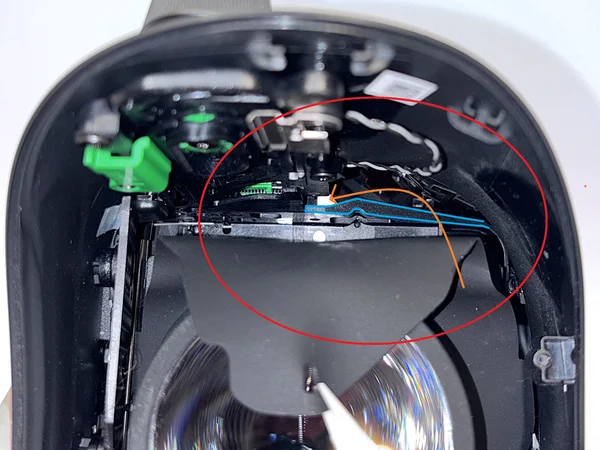
Cable path on the right side 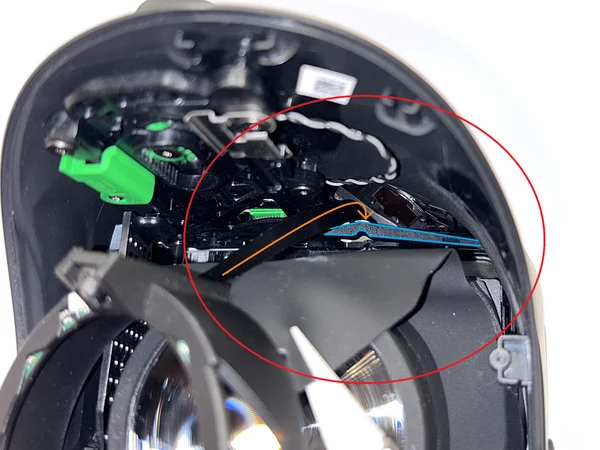
Guiding the right ribbon cable behind the plastic part 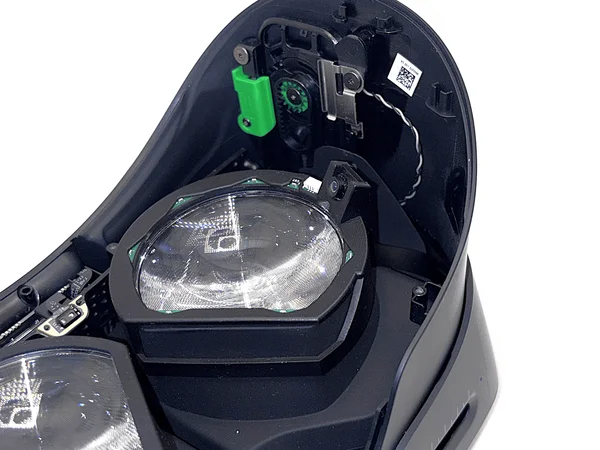
Inside view showing where the right ribbon cable comes out 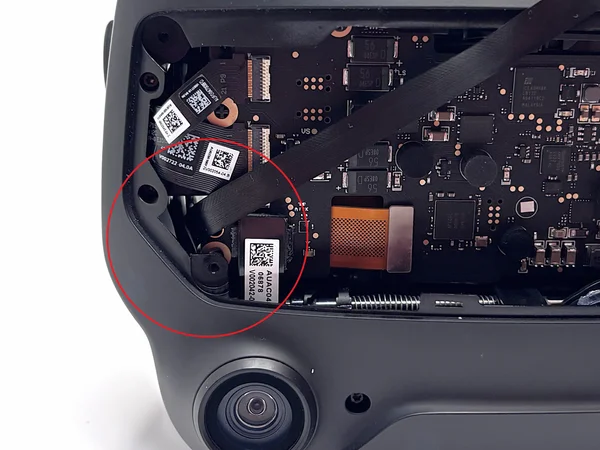
Front view with the area where the right cable comes out highlighted Again, the ribbon cable goes behind the plastic part marked in blue. It comes out through the small hole where light shines through, along the orange arrow in the first picture.
The last picture shows where the ribbon cable should come out.
Once the cable is through, gently press the eye module onto the lens to hold it in place.
- 7
Route the Left LED Cable
Route the left LED cable along the same path as in step 5.
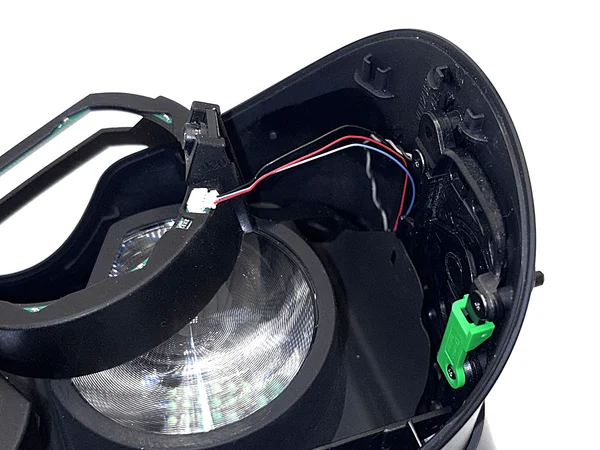
Left LED cable routed along the same path as in step 5 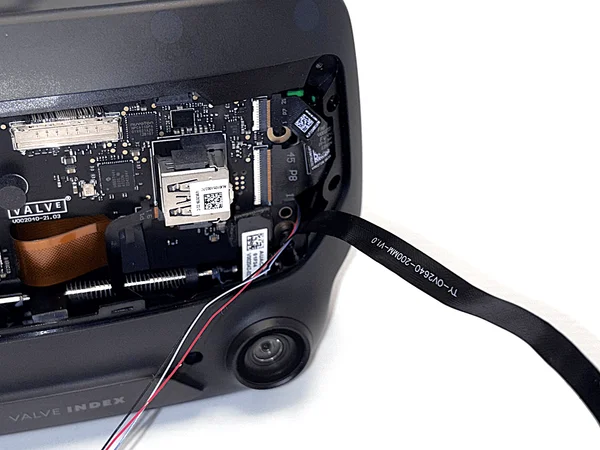
Connecting the LED cable to the eye module 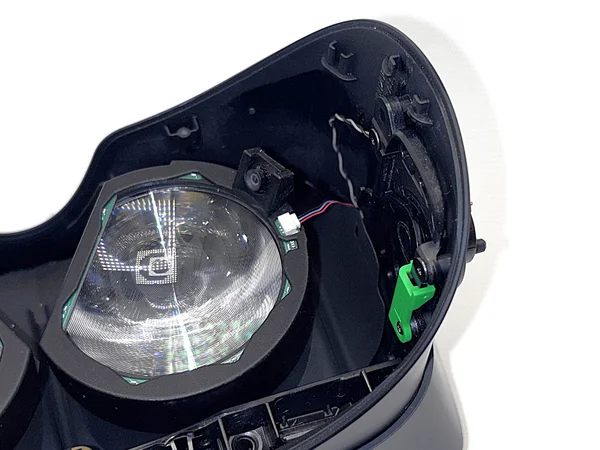
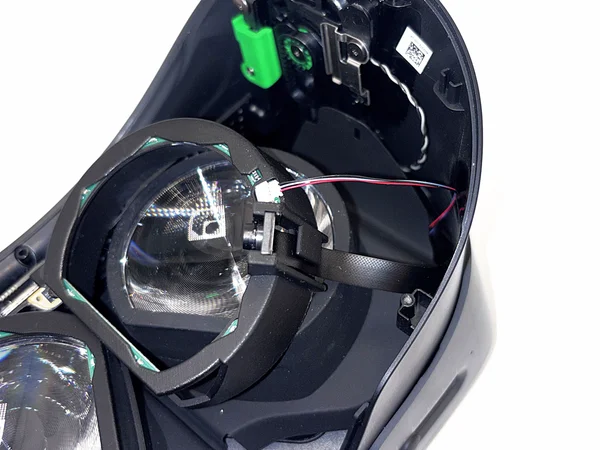
Eye module pressed onto the lens, excess cable pulled through Now that both camera ribbon cables are in place, route the left LED cable along the same path as in step 5.
You may need to lift the eye module slightly off the lens to get the cable through. Be careful not to let the camera ribbon cable slip out while you do this.
Connect the LED cable to the eye module. Then press the eye module back onto the lens and gently pull the excess cable out at the front.
- 8
Route the Right LED Cable
Route the right LED cable along the same path as in step 6.
Right LED cable routed along the same path as in step 6 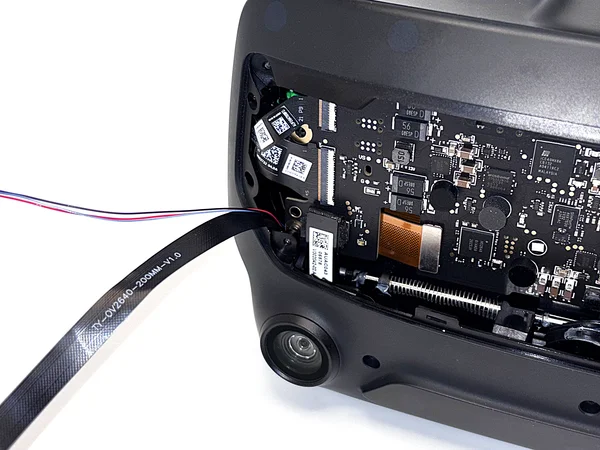
Connecting the right LED cable to the eye module 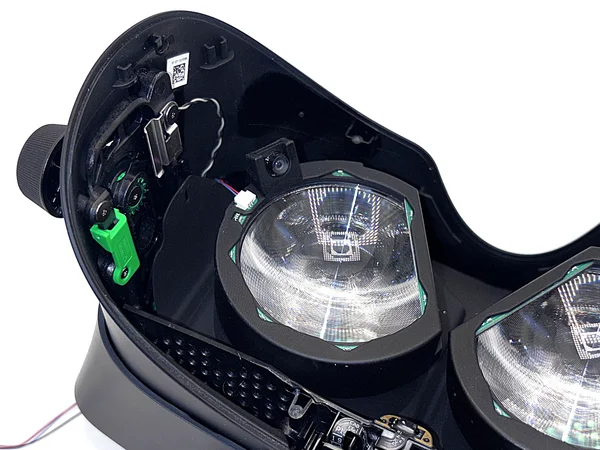
Eye module pressed onto the lens, excess cable pulled through Now repeat step 7 for the right side: route the right LED cable along the same path as in step 6.
Again, you may need to lift the eye module slightly off the lens to get the cable through. Be careful not to let the camera ribbon cable slip out while you do this.
Connect the LED cable to the eye module. Then press the eye module back onto the lens and gently pull the excess cable out at the front.
- 9
Reattach the Eye Tube Gasket
With all cables routed, reattach the eye tube gasket.
Placing the left edge of the eye tube gasket onto the hooks 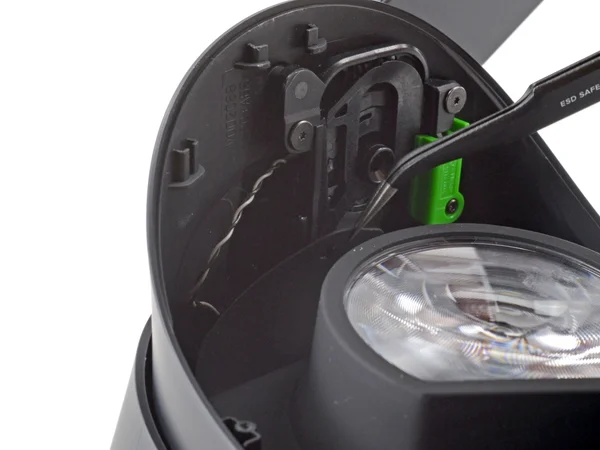
Attaching the right edge of the gasket Eye tube gasket fully reattached Source: ifixit.com
- Use tweezers to place the left edge of the eye tube gasket onto the small hooks on the headset.
- Do the same for the right side of the gasket.
- 10
Reattach the Face Gasket Bezel
Now reattach the face gasket bezel.
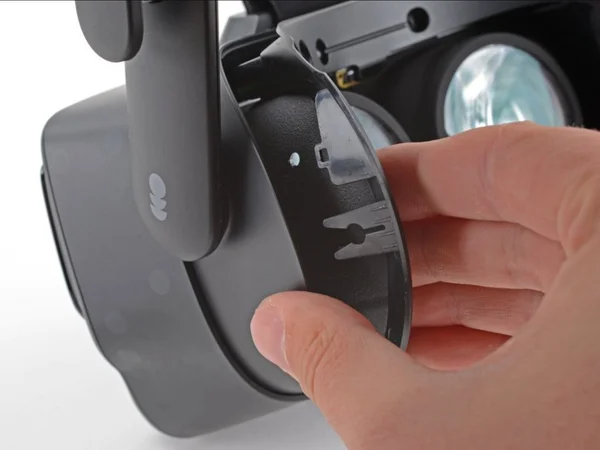
Positioning the left side of the face gasket bezel 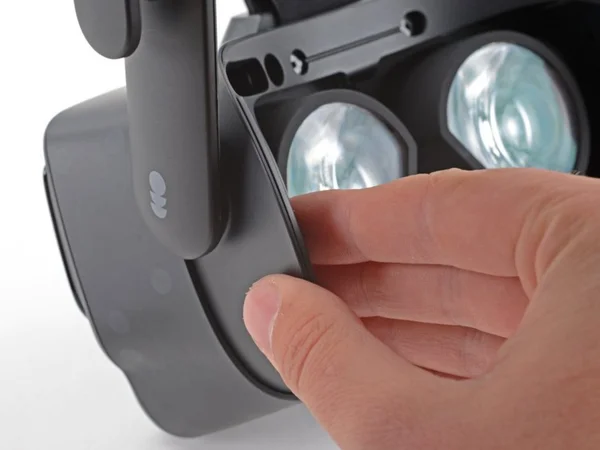
Positioning the right side of the face gasket bezel 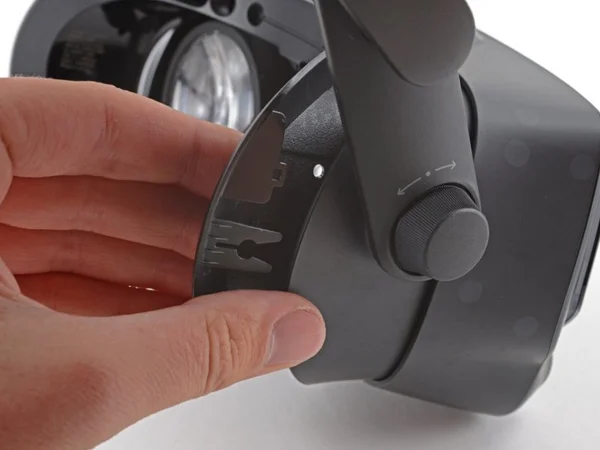
Sliding the bezel onto the headset 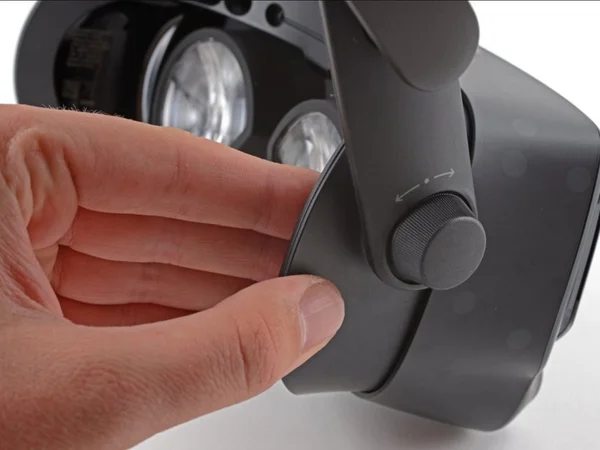
Bezel fully slid into place Fastening the four T5 Torx screws 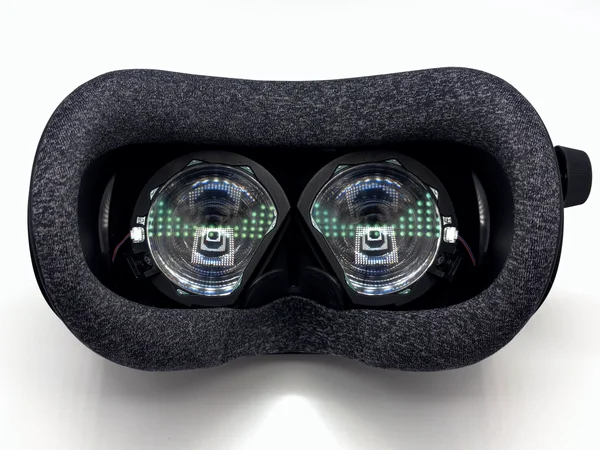
Face gasket bezel fully reattached Source: ifixit.com
- Position both sides of the face gasket bezel and carefully slide it onto the headset.
- Use the T5 Torx screwdriver to fasten the four 6 mm screws.
- Reattach the magnetic face cushion.
- Plug the tether cable back into the headset.
Warning: Before you slide the face gasket bezel fully into place, make sure its clips line up with the headset. - 11
Prepare the Cable Routing
To keep the left ribbon cable from getting caught in the fan, route it through a specific gap.
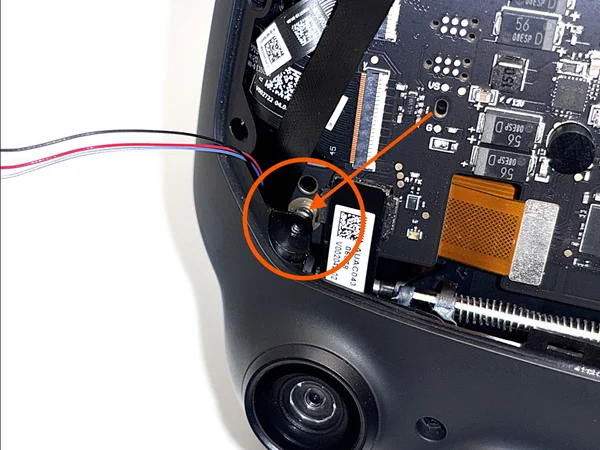
Overview of the cable routing gap on the left side 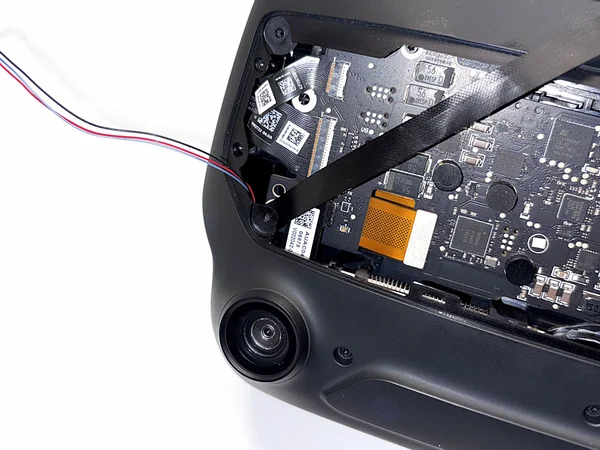
Gap between the plastic housing and the threaded insert highlighted 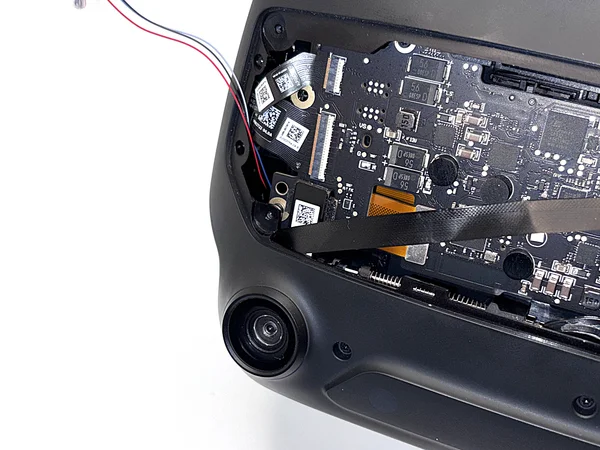
Guiding the ribbon cable through the gap 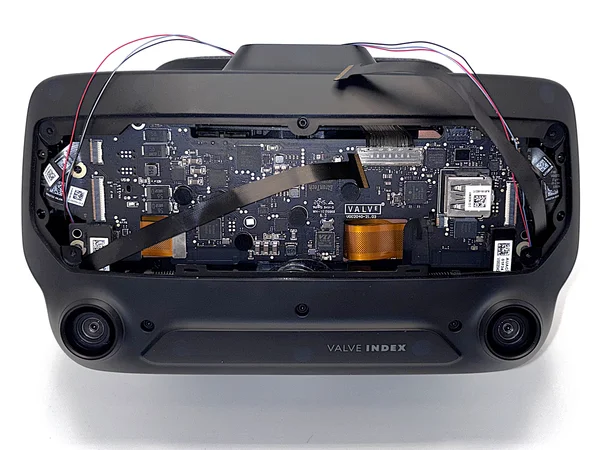
Ribbon cable pushed all the way through the gap - Check that the field-of-view adjustment is still fully extended and the IPD is still at its minimum (lenses fully inward).
- Guide the left ribbon cable (seen from the front of the Index) through the small gap between the plastic housing of the Index and the threaded insert, as shown in the pictures.
Warning: Make absolutely sure that the ribbon cable is pushed all the way through and not stuck in the gap. If the cable gets caught there, it will be damaged beyond repair. - 12
Install the Frunk
Route the cables through the new frunk and attach it to the headset.
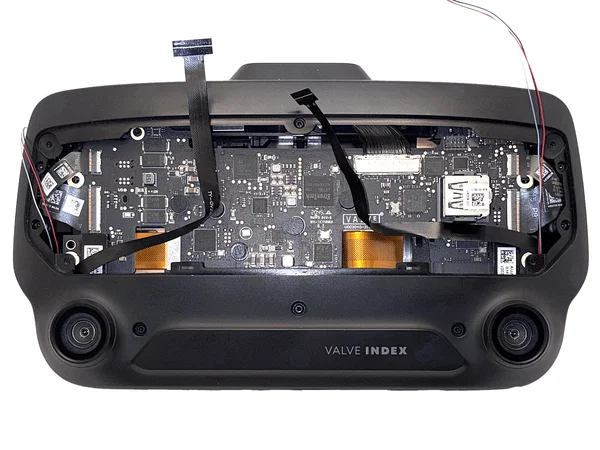
Cables pre-bent and routed correctly through the frunk Read the whole step before you start!
- Avoid sharp bends: Do not bend or crease the cables sharply. A gentle curve, as shown in the pictures, is fine.
- Do not pinch the cables: Make sure the ribbon cables are not pinched when you attach the new frunk. They should lie as flat as possible. They must not stand on edge, because that can crush and damage them.
This step takes some patience and care, because the cables tend to stand up or shift out of position.
It sometimes helps to pre-bend the cables slightly, as shown in the picture. Then they fall into the right position more easily during installation.
-
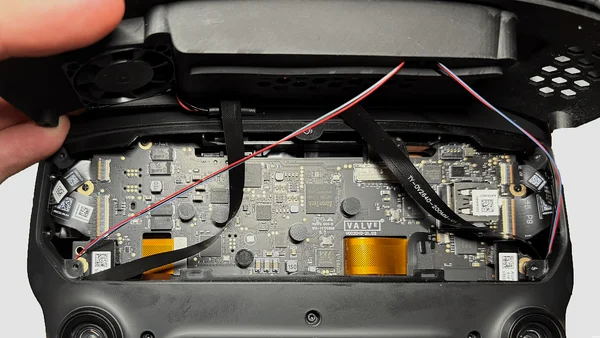
Cable routing through the frunk, showing the correct positions 
Close-up of the right cable near the USB port, routed away from the connector When you attach the frunk, make sure the cables run roughly as shown in the pictures. The exact routing is not critical, but it is very important that they are not pinched or sharply bent.
Pay special attention to the right cable near the USB port. In my experience, it tends to stand up in front of the connector. The cable should run away from the USB port, not in front of it.
You should not feel much resistance when you put the new frunk in place. If you have to force it down, a ribbon cable is probably pinched, most likely the right one (seen from the front of the Index).
-
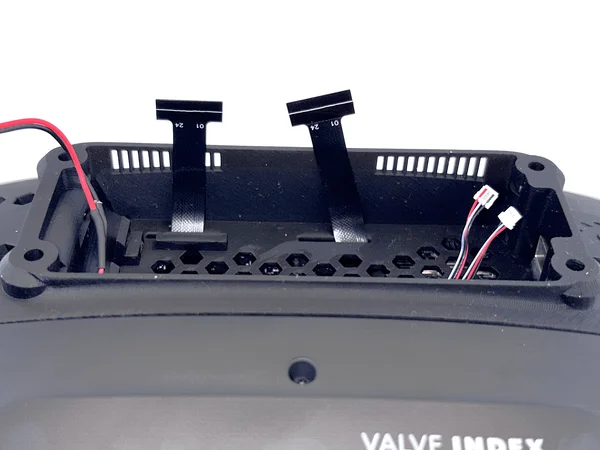
Cables sticking out about 1 cm past the edge of the frunk 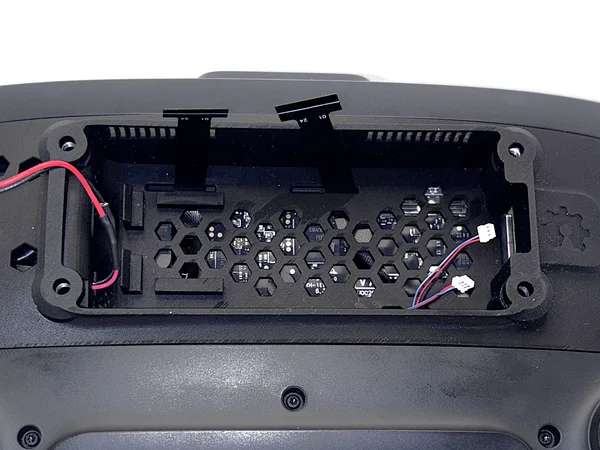
Gold contacts of the ribbon cables facing up in the passthrough The cables should stick out about 1 cm past the edge of the frunk, so you can connect them easily later. The exact length is not critical, as long as there is enough cable to plug them in comfortably.
Before you tighten the screws, make sure no ribbon cable has moved into the path of a screw (see step 11).
Warning: Make sure the gold contacts of the ribbon cables face up when you feed them through the passthrough. - 13
Install the FaceFocusVR Board
Carefully insert the board into the USB connector and secure it.
Tip: you can plug in the LED connectors before you install the boardSeveral people found it easier to plug in the two LED connectors (the small connectors at the bottom right of the board) before installing the board. That way, you do not have to work in the tight space that is left once the board is in place. If you do this, make sure the cables run up along the side of the board when you insert it, as shown in the picture. They must not get pushed behind the board. Before you plug them in, check the correct orientation in the second picture of "Reference: Correctly Seated Connectors" after step 14.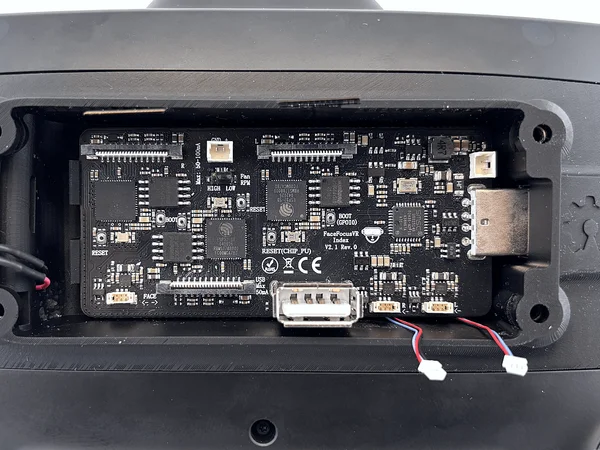
FaceFocusVR board being inserted into the USB connector at an angle - Insert the board into the USB connector at a slight angle. As soon as it clears the edge of the frunk, level it out so it slides straight into the USB connector.
- Once the board is fully inserted, press down on its back until it clicks into the hook.
Note: Due to manufacturing tolerances, the hook does not always engage cleanly. If it does not fit or breaks off, you can ignore it. - 14
Connect All Cables
Connect the ribbon cables, the LED connectors, and the fan.
Ribbon cable gently bent and connected to the board 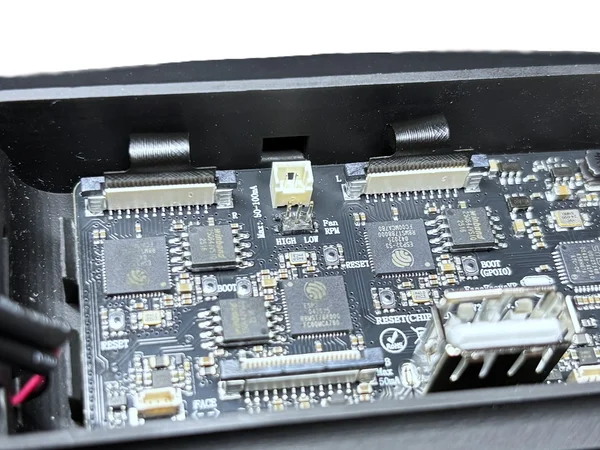
Black tabs lifted to open the ribbon cable connector 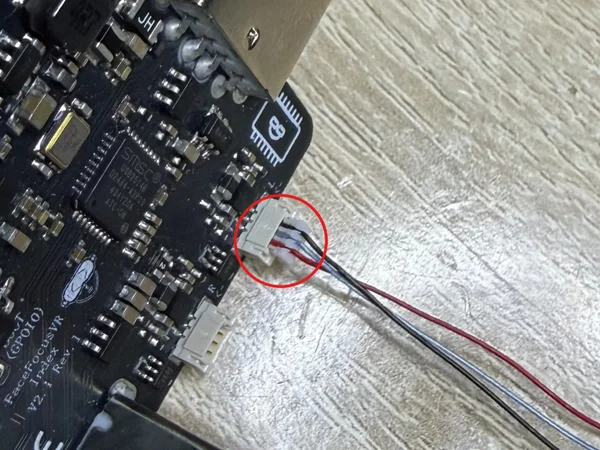
LED connector orientation reference 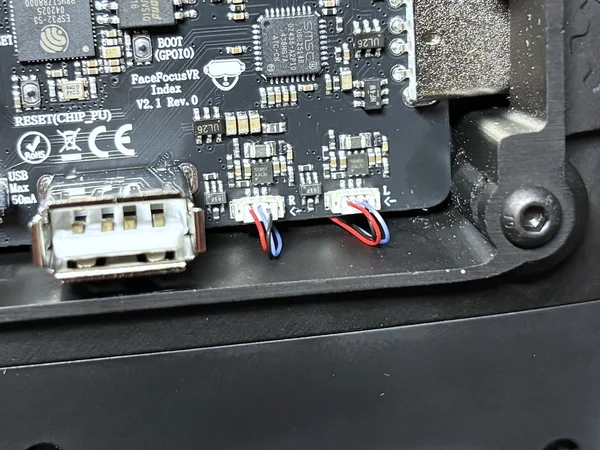
LED connector with the metal contacts facing down 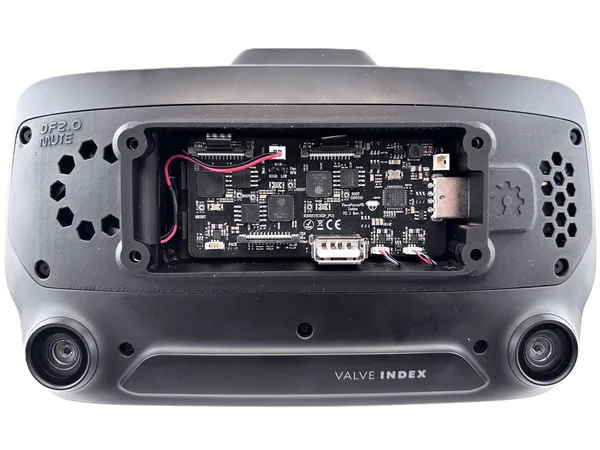
Fan connector plugged into the board - Open the ribbon cable connectors by lifting the black tabs on the sides, as shown in this video.
- Connect the ribbon cables. Bend them gently, as shown in the first picture, and never crease them.
- Now plug in the two LED connectors. They only fit one way, so do not force them. The cable colors and wire order do not matter. Just make sure the metal contacts of each connector face down when you plug it in, as shown in the third picture.
- Finally, plug in the fan.
Warning: Make sure the metal contacts of the LED connectors face down when you plug them in. They only fit one way, so do not force them.
Always insert every connector perfectly straight. Never push it in at an angle or tilted to one side. That bends the delicate metal pins and can permanently destroy the board.Note: Once everything is connected, compare your connectors with the "Reference: Correctly Seated Connectors" block below to make sure each one is fully seated. - ✓
Reference: Correctly Seated Connectors
Before you close everything up, compare your connectors with these reference pictures. A connector that is not fully seated is the most common reason why a camera does not show up later.
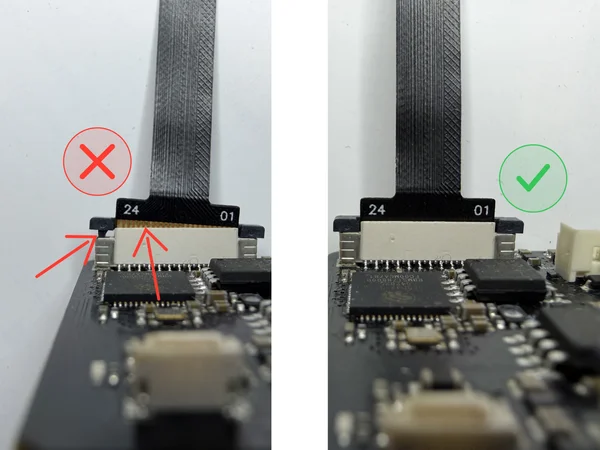
Comparison of a camera ribbon cable in its connector: not fully inserted with gold contacts still visible (wrong) versus pushed all the way in with the locking tabs fully closed (correct) 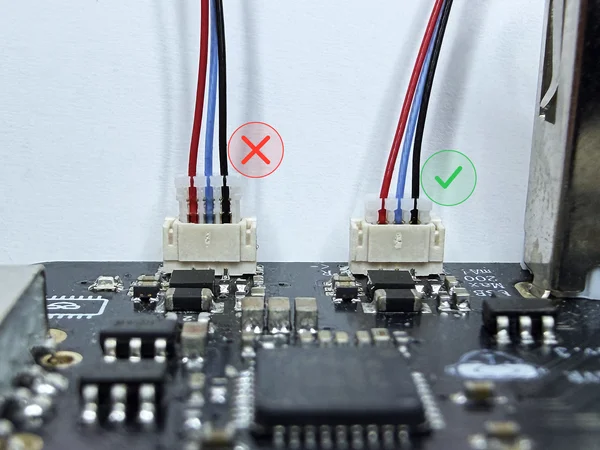
Comparison of an LED connector: fully seated and correctly oriented (correct) versus not fully inserted (wrong) Camera (ribbon) cables: The left side of the picture shows how it should not look. Push the ribbon cable all the way into the connector, so that no gold contacts are visible anymore. Also check that the locking tabs are pressed down fully, with no gap left.
LED connectors: As described in step 14, insert each connector straight and the right way around. They need very little force to seat, so do not force them. Compare them with the pictures and make sure they are fully seated.
- 15
Attach the New Front Cover
Attach the new front cover with the face module and the power button.
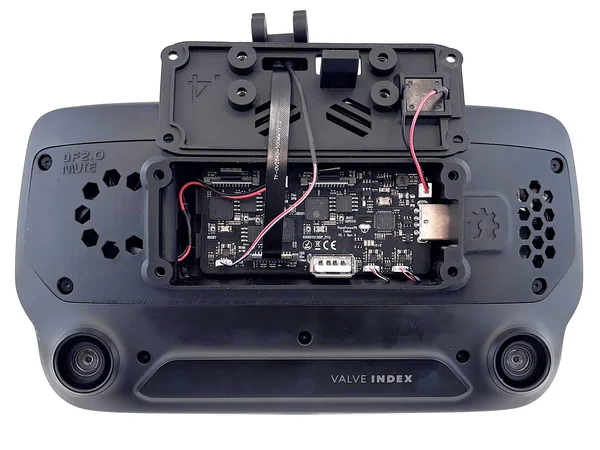
Face module fed through the front cover and connected to the board 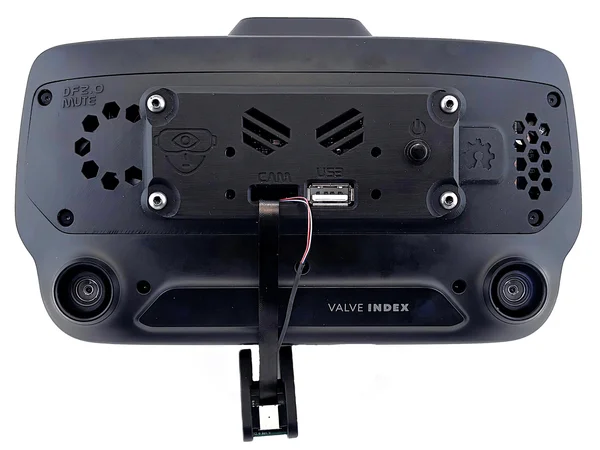
Front cover secured with screws - Feed the pre-assembled face module through the new front cover and connect it to the board, as shown in the picture.
- Connect the power button to the board.
- Fasten the cover with the supplied screws, using the M3 Allen key.
Warning: You are screwing into plastic, so do not overtighten. Hand-tight is enough. Too much force can strip the threads permanently. - 16
Mount the Face Module Arm
Route the ribbon cable through the holder and mount the arm to finish the installation.
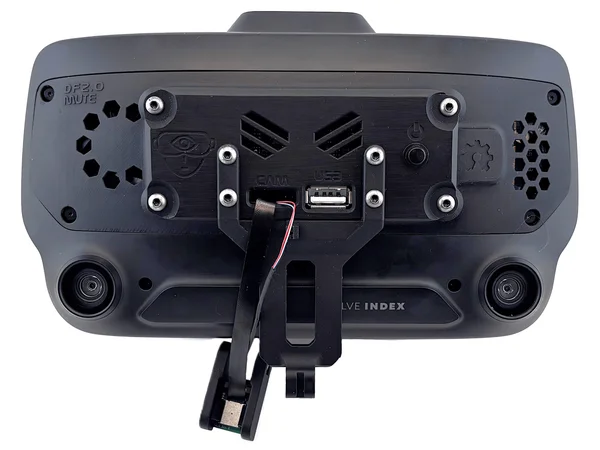
Ribbon cable fed through its holder 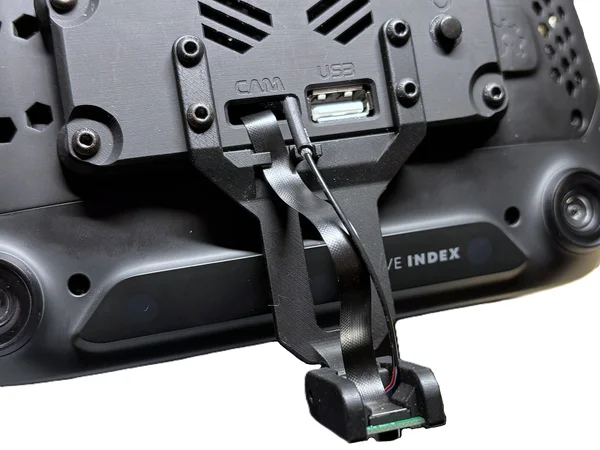
Face module arm installed at an angle to avoid cable tension 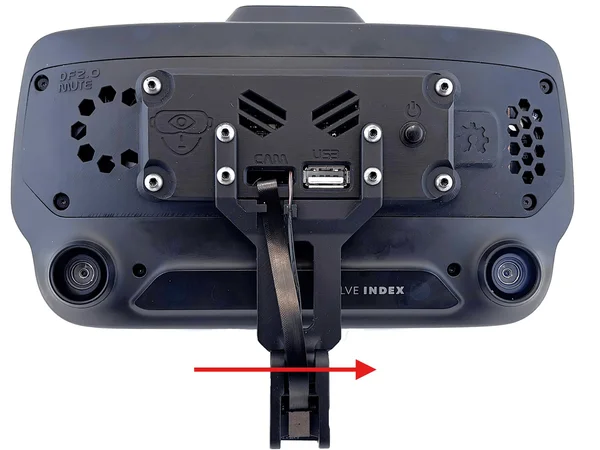
The Index seen from the front, with a red arrow showing the long screw going in from the left, through the face module, and into the nut on the right - Feed the ribbon cable through its holder. Then fasten the arm with the M3 Allen key. This is easiest if you hold the face module at an angle for now, so the cables are not under tension.
- Install the long screw that holds the face module, also with the M3 Allen key. Seen from the front of the Index, insert the screw from the left, as shown in the third picture. It goes through the face module and screws into the nut on the right. Do not insert it from the right.
- Turn the face module so it points toward your face, then tighten the screw. The installation is now complete.
Warning: You are screwing into plastic, so do not overtighten. Hand-tight is enough. Too much force can strip the threads permanently.Note: For the long screw, I recommend tightening it only enough that you can still move the face module easily by hand. A little play here makes it far less likely that the arm breaks off. - ✓
Congratulations, You're Done!
Your hardware installation is complete. Follow the steps below to check that everything works.
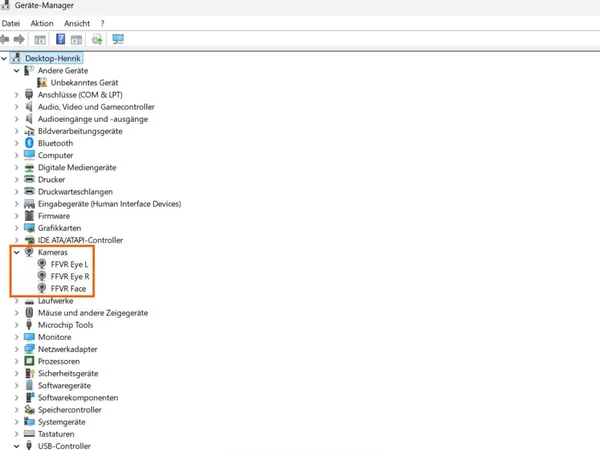
Device Manager showing three camera devices, confirming a successful installation To test everything, power on your Index and switch on your new hardware with the button on the front. A blue LED on the board should light up. You can see it through the top ventilation slots above the power button.
Next, open the Device Manager. If it lists three camera devices, as shown in the picture, the board is working correctly. If you only see two, turn the system off and on again once. Sometimes Windows or the USB connection does not set up all devices on the first try.
Now open the Windows Camera app and switch between all three video streams. If that works: congratulations, your hardware is installed and working correctly.
Now continue with the software part.
Software Setup
Set up the tracking software on your PC.
Basics
This project is about the hardware. Your PC sees the three cameras (Eye L, Eye R, Face) as standard UVC webcam streams. Any software that can process a webcam stream will work.
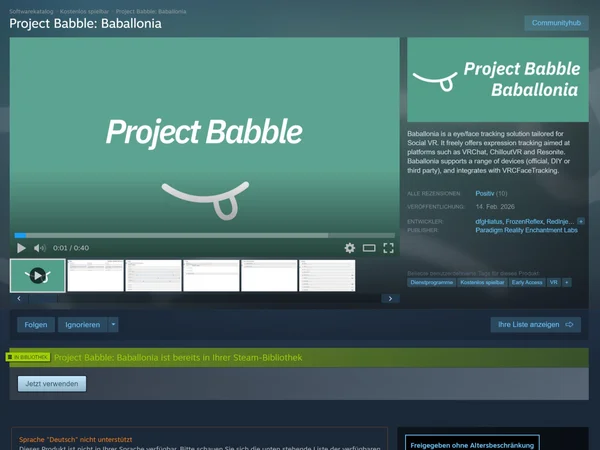
Popular tracking software includes ETVR, Ryan's Eye Tracking, and Project Babble. All of them work with this hardware. I recommend Baballonia by Project Babble for the best results and ease of use, but feel free to try others.
This guide shows how to set up Baballonia.
- ▶
VRCFaceTracking
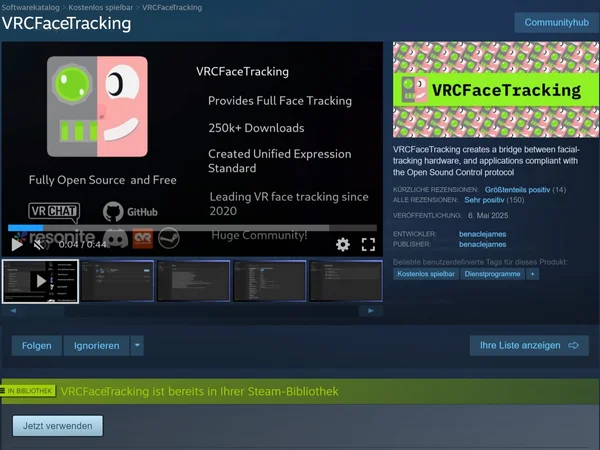
VRCFaceTracking Module Registry 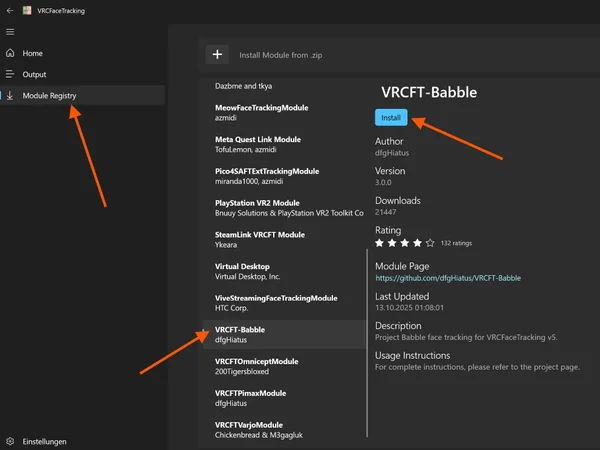
Search result for the VRCFT-Babble module 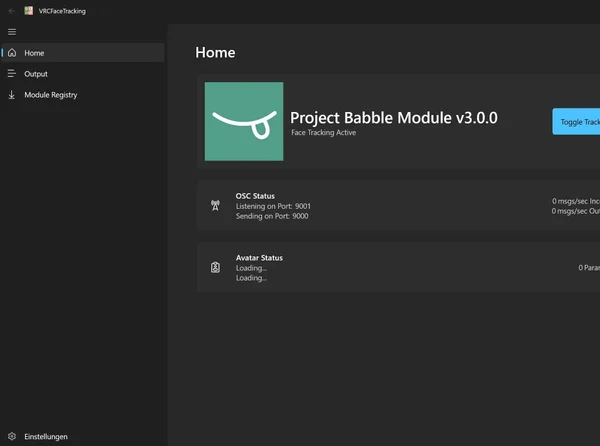
Babble module installed on the VRCFT home page VRCFT works as a translator for VRChat. It takes the face and eye tracking data from Baballonia and turns it into parameters that VRChat understands. That way, your avatar's expressions and movements follow yours.
To use face tracking (and eye tracking) in VRChat, you need VRCFT, whether you use my hardware or any other face tracking solution.- Download VRCFT on Steam
- Start VRCFT and go to "Module Registry". Search for the module "VRCFT-Babble" and install it.
- Restart VRCFT.
- The Babble module should now appear on the VRCFT home page, as shown in the last picture. That's all you need to do in VRCFT.
- ▶
Baballonia
Baballonia main window 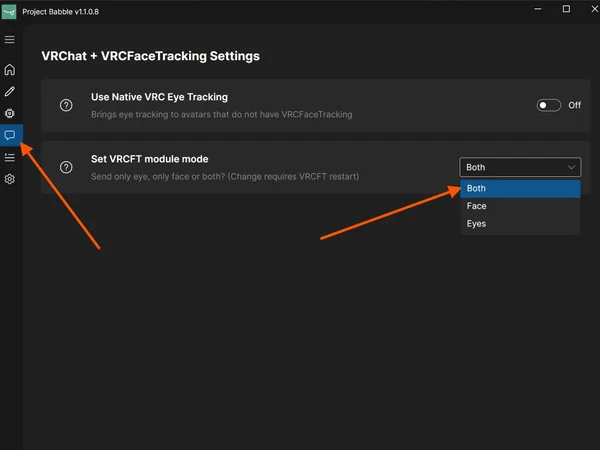
VRChat + VRCFaceTracking communication settings with the VRCFT module mode set to Both 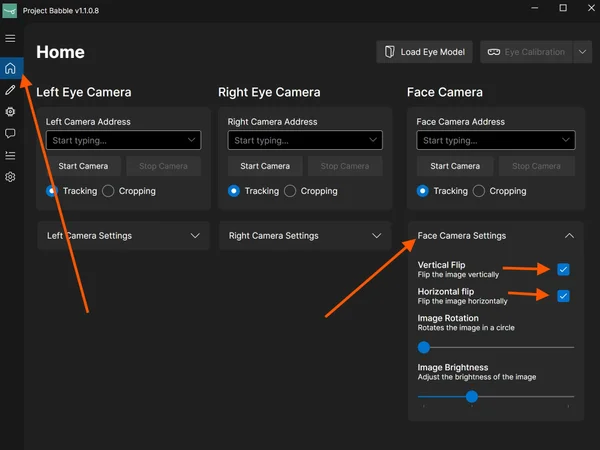
Face Camera Settings with the flip options turned on 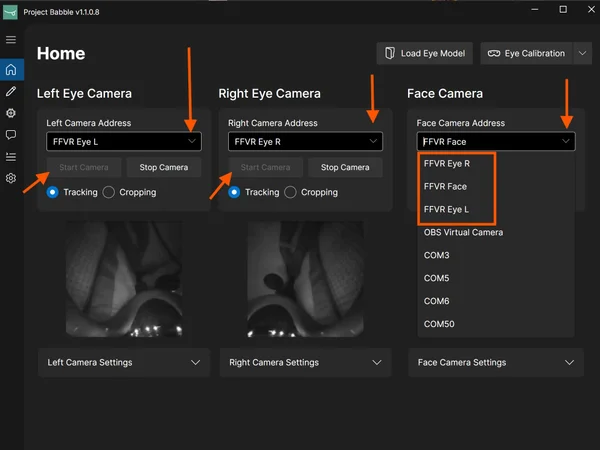
Camera selection dropdown menu 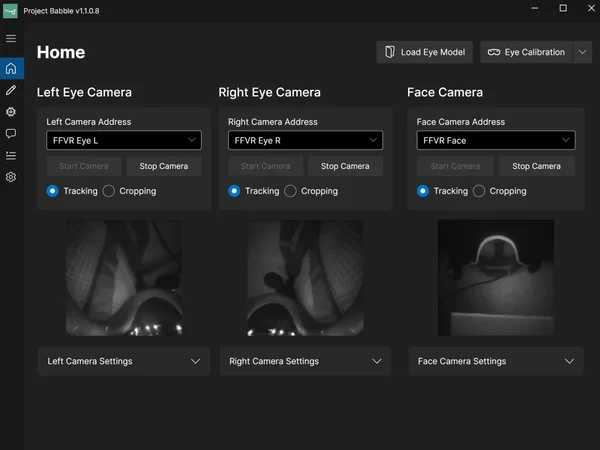
All cameras started and tracking active Baballonia analyzes the camera streams of your eyes and face. From them, it works out where you are looking, how open your eyes are, and your facial expressions. Then it sends this data to VRCFT.
- Download Baballonia on Steam
- Open Baballonia and skip the setup wizard.
- Open the communication settings and set the VRCFT module mode to "Both", so that both eye and face data are sent. I do not recommend native VRC eye tracking.
- Open the "Face Camera Settings" and turn on both the vertical and the horizontal flip. Depending on your version, the flip options may appear as icons. Do not change any camera settings for the eyes!
- Make sure your Index and the hardware are powered on. Then select the matching camera from the dropdown menu.
- Once you have selected all cameras, click "Start Camera" for each one.
- ✓
Almost Done!
Do the following steps with the headset on. You can also do them while VRChat is running, but then the model training after the calibration can take much longer.
Note: If the eye tracking camera image looks overexposed or washed out, check the Safety page. If you need help, reach out on Discord. - ▶
Face Camera Cropping
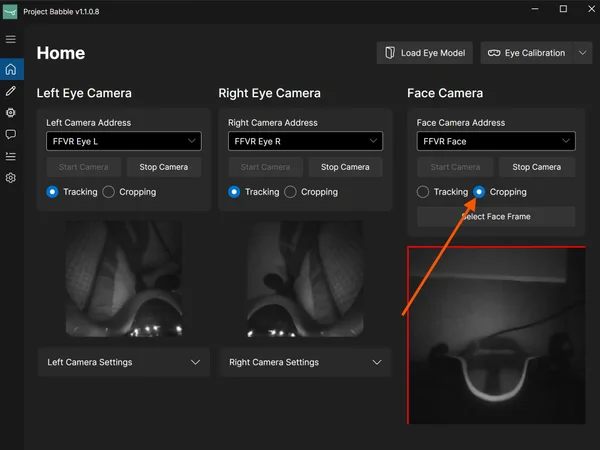
Face camera cropping mode selected 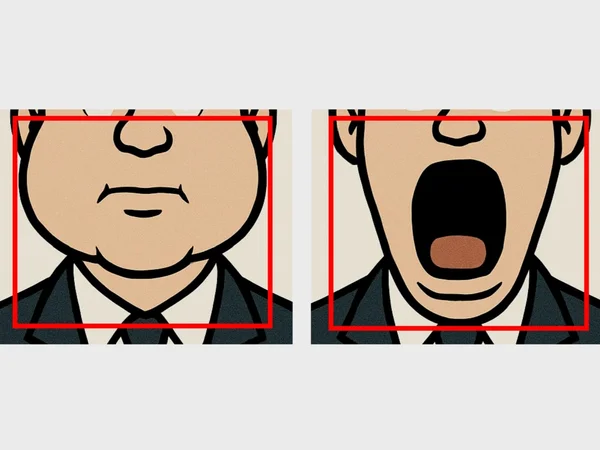
Setting the crop edges with puffed-out cheeks 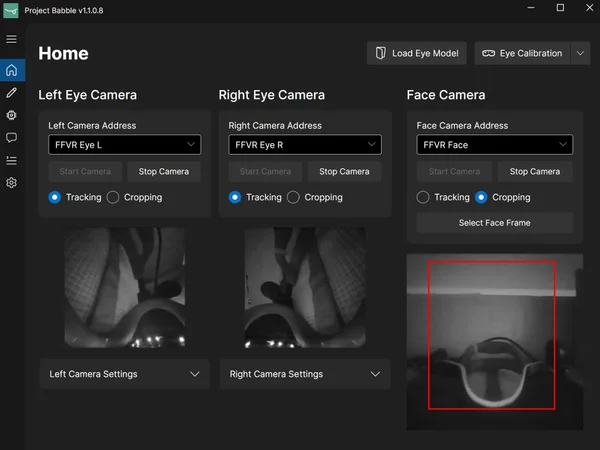
Adjusting the top edge with the nose visible 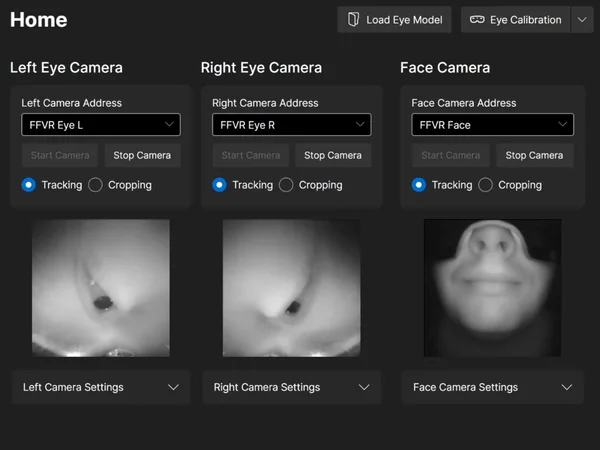
Final crop result Only the face camera needs a crop. Set it so your face stays visible in every extreme position, with as little background as possible. I recommend this approach:
- Change the mode of the face camera from "Tracking" to "Cropping".
- Puff out your cheeks as far as you can. This sets the side edges of the crop.
- Open your mouth as wide as you can. This sets the bottom edge.
- Set the top edge so your nose stays visible, with as little of the Index headset in the frame as possible.
- Try to keep the crop box as close to a square as possible.
- That's it. Face tracking needs no manual calibration. Just use it for a few minutes and it adjusts itself.
It does not have to be perfectly precise. In my testing, it is better to include a bit more background than to cut off parts of your face by accident. Your crop will probably end up looking similar to mine in the last picture.
- ▶
Eye Tracking Calibration
Video: https://www.youtube.com/watch?v=CmLql1VxT-I
I highly recommend watching the video before you start the calibration.
- Stand in the middle of your playspace and face forward. If you are not sure which way is forward, recenter your playspace.
- Click "Eye Calibration". A SteamVR overlay appears with a short video of the head movements you need to make.
- When the 60-second timer ends, repeat those head movements for about 3 minutes. The exact order does not matter. What matters is that your eyes always stay on the ball and that you move your head so your eyes reach their extreme positions.
- When this part is done, you get feedback. Then a message appears: "When the countdown finishes, close your eyes."
- When the timer reaches 2 seconds, close your eyes. Keep them fully closed until you get another confirmation.
- While your eyes are closed, squeeze each eye shut twice and raise your eyebrows twice, as if you were surprised. Keep your eyes closed the whole time. Moving the headset slightly during this phase can also help.
This teaches the software what your eyes look like when closed, because that can change with your facial expression or the headset position.
- ✓
You're All Set!
Eye and face tracking are now ready to use. To test them in VRChat, try this avatar.
To fine-tune your tracking, fix problems with blinking or winking, or exaggerate certain expressions, switch to the Fine-Tuning tab.
Fine-Tuning
Adjust the tracking parameters to get the best results for your expressions.
- ✓
Before You Start
Only change these settings if you notice a specific problem, for example blinking that does not work right, expressions that trigger too early, or expressions that are not strong enough. If everything works fine, you do not need to change anything.
- ▶
Adjusting Parameters
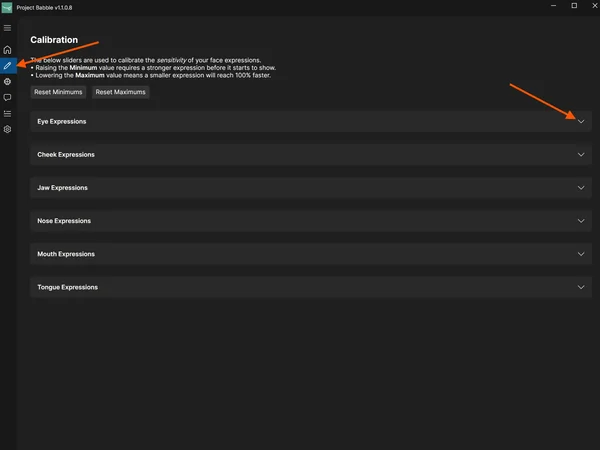
Baballonia calibration window overview 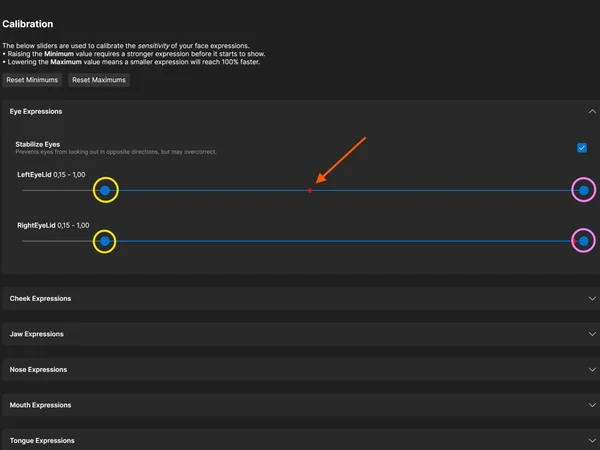
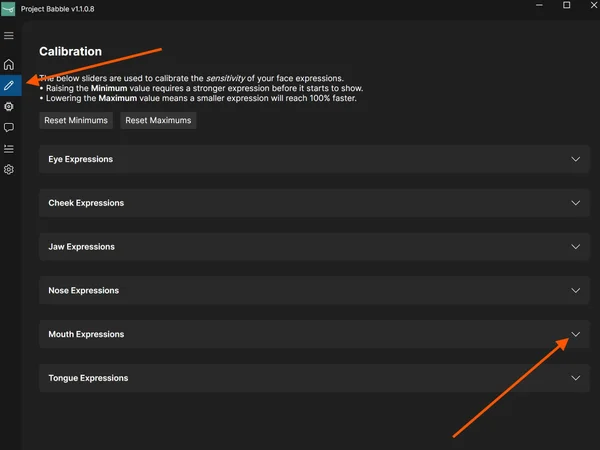
Parameter sliders with minimum (yellow) and maximum (pink) controls If your avatar does not blink correctly, or you want smiles and other expressions to look stronger or weaker, you can fine-tune them in Baballonia with the threshold settings.
- Open the calibration window in Baballonia (pencil icon). Then open the parameter group with the parameters you want to adjust (for example "smile").
- Do not blindly copy my settings, because they are different for everyone. You get the best results if you understand what each slider does.
Each parameter, such as LeftEyeLid, RightEyeLid, or a face parameter like smile, has two controls: a minimum (circled in yellow) and a maximum (circled in pink). The red dot shows the current state and moves with your expression. For example, it moves to the left when your face is relaxed, and to the right when you start smiling.
The minimum sets when a shape starts to activate. Raise it if the shape triggers too early or stays active while your face is relaxed. The maximum controls how far the shape can move. Lowering it exaggerates the motion within the new range.
I highly recommend just playing VRChat with your avatar, looking in a mirror, and experimenting with the minimums and maximums. The values update live, so you do not need to switch between tabs to see the results.
- ▶
Blinking and Winking
Eyelid parameter with the minimum slider adjusted for blink detection 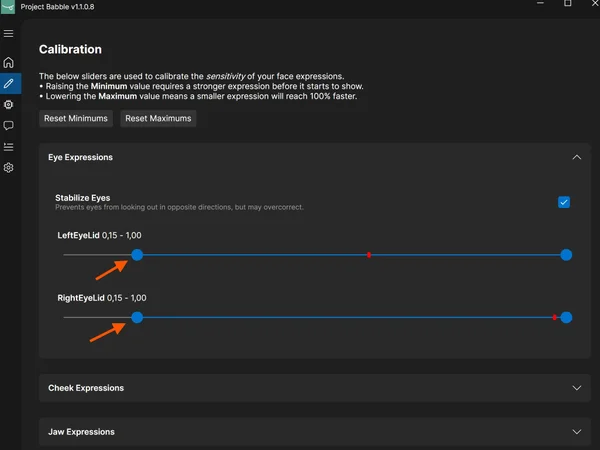
Eyelid parameter with adjusted blink values If your avatar's blinking or winking does not work as expected, or it does not blink at all, raise the minimum value of the eyelids. This makes the blink trigger earlier and look faster.
- Blink several times and watch how far the red dot moves to the left.
- Move the left (minimum) slider to that point, or slightly to the right of it.
Your value will probably be higher than the one in the picture. Depending on the calibration, mine is usually between 0.15 and 0.4.
- ▶
Exaggerated Expressions
Smile parameter with a lowered maximum for a slight resting smile 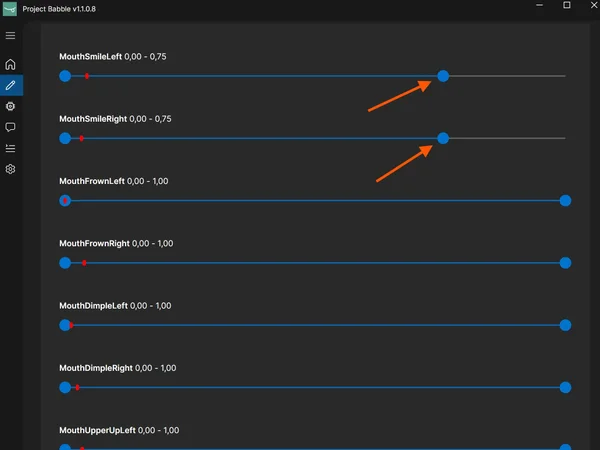
Experimenting with expression parameters in a VRChat mirror Sometimes you may want an expression to trigger earlier, to stay slightly active all the time, or to be exaggerated.
Smiling is a good example. If you want your avatar to keep a slight smile even when your face is mostly relaxed, just lower the maximum value of the smile parameter.
- ▶
Expressions Triggering Too Early
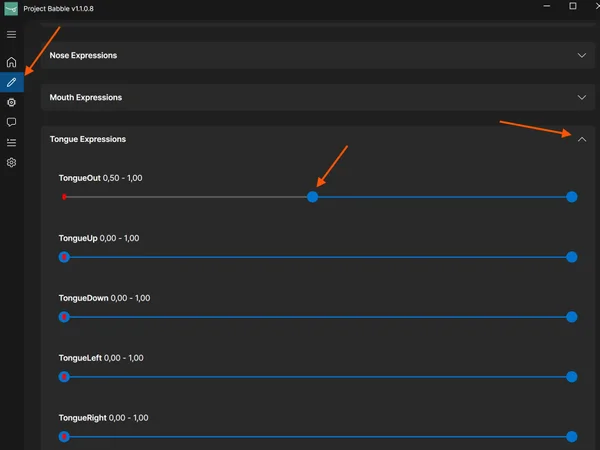
Raising the minimum value so an expression does not trigger too early Sometimes an expression triggers too early. For example, you open your mouth and your avatar sticks out its tongue, even though you are not doing that.
In that case, raise the minimum value of the matching parameter, so the expression only activates when it should.
FFVR Connect
A browser tool to control your FaceFocusVR hardware.
What Is FFVR Connect?
FFVR Connect is a web-based tool that lets you control your FaceFocusVR hardware right from your browser. You can adjust the fan speed, change the LED brightness, and turn on and read logs. Firmware updates will follow in the future.
The tool is designed to be easy to use. Open it in your browser, connect your board, and you are ready to go.
You can find it here: connect.facefocusvr.com
Browser & Connection
FFVR Connect needs a Chromium-based browser (Google Chrome, Microsoft Edge, Brave). I recommend Google Chrome. Firefox and Safari are not supported.
If your board cannot connect, it is most likely running an older firmware version that does not support the tool. Boards shipped before March 15, 2026, have no hardware for fan control, so they do not need a manual firmware update.
If you still want to update, please get in touch on Discord.
Features
Fan Speed: The default is 30%, which is also what I recommend. Do not set it below 25%.
LED Brightness: You can change it, but you do not need to. Only change it if FaceFocusVR support asks you to.
Logging: Turn on and read device logs for troubleshooting.
Firmware Updates: Coming to FFVR Connect in the future.